Lifecycle checklists, alerts and reports
Who this is for: managers, supervisors and safety administrators.
What you will learn: how to publish start/end of shift and visit checks, monitor alerts, review failed checks and use the checklist report.
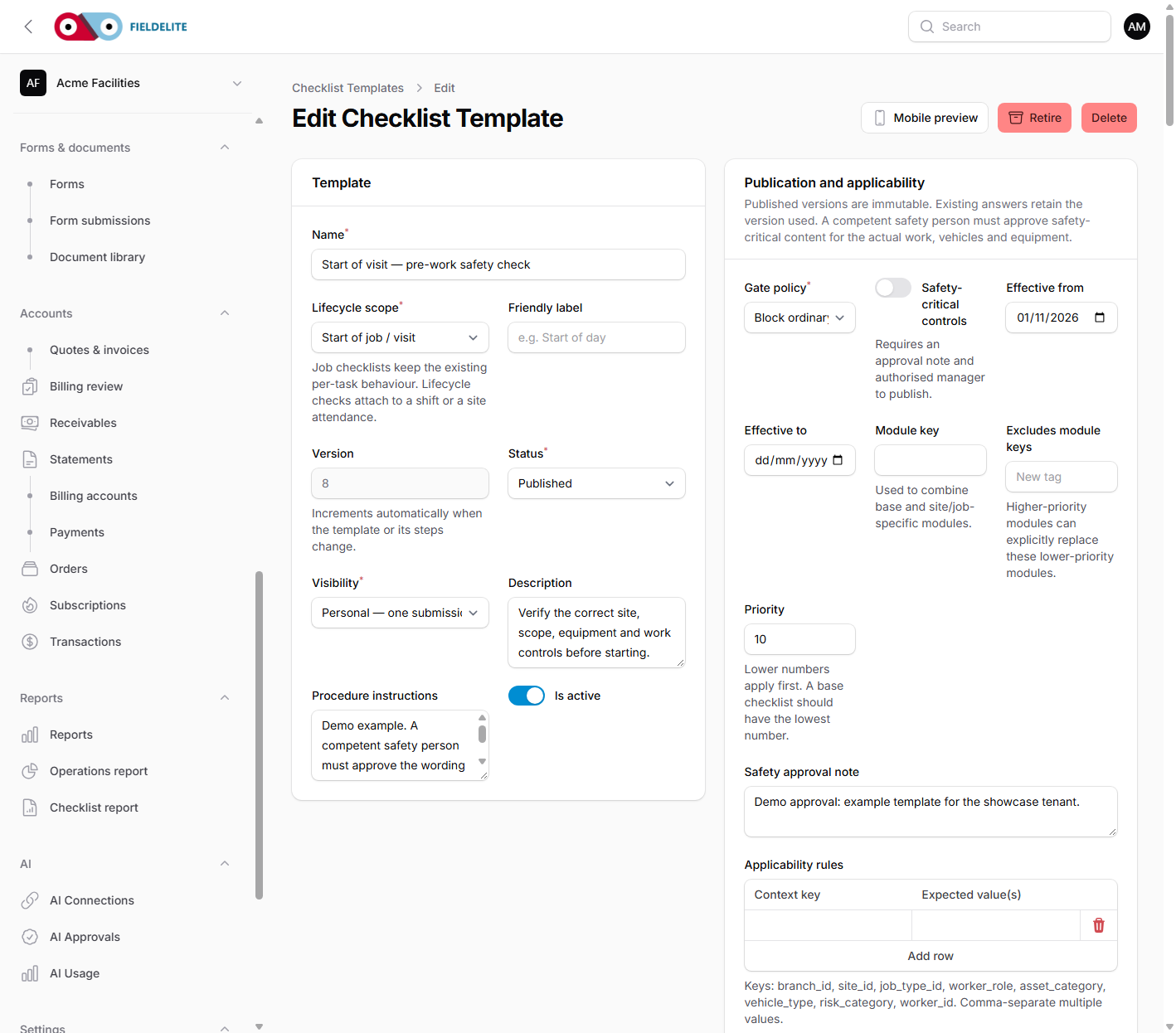
Four lifecycle scopes
| Scope | Runs when | Owner |
|---|---|---|
| Start of shift | The worker starts the day | Worker shift |
| End of shift | The worker ends the day | Worker shift |
| Start of visit | The worker starts a job visit | Job attendance |
| End of visit | The worker ends a job visit | Job attendance |
The legacy Job scope still handles per-task checklists.
A shift is a real record with a start and end time, not just a date. A return visit creates a new attendance; the job itself is not duplicated.
Publish a template
- Open Settings → Checklist templates.
- Create or edit a template.
- Choose the scope.
- Choose the gate policy:
| Gate | Effect |
|---|---|
| No gate | Record only |
| Reminder | Remind, do not block |
| Warning | Warn, do not block |
| Block | Stop ordinary progression |
| Require review | Stop until a supervisor reviews |
| Critical stop | Escalate immediately |
- Set applicability: branch, customer, work type or module.
- Set the priority if more than one template applies.
- Add items and mark critical items.
- Mark items that create a defect on failure.
- Preview the mobile layout.
- Publish.
Publishing creates an immutable version. Later edits do not change records already in flight. Safety-critical templates need an approval note and an authorised manager.
Warning: An urgent update can create explicit rechecks for in-flight work. Completed and accepted records are never rewritten.
Gates and exceptions
A gate is evaluated from the answers, not from a checkbox.
- Clear — progression allowed.
- Blocked / critical stop — ordinary progression stopped.
- Review required — a supervisor must decide.
- Exception approved — a manager recorded a reason for incomplete work.
An exception cannot clear a critical failure. Emergency contact, incident reporting, access to instructions and recording a failed outcome are never blocked.
Alerts
Open Jobs → Checklist alerts.
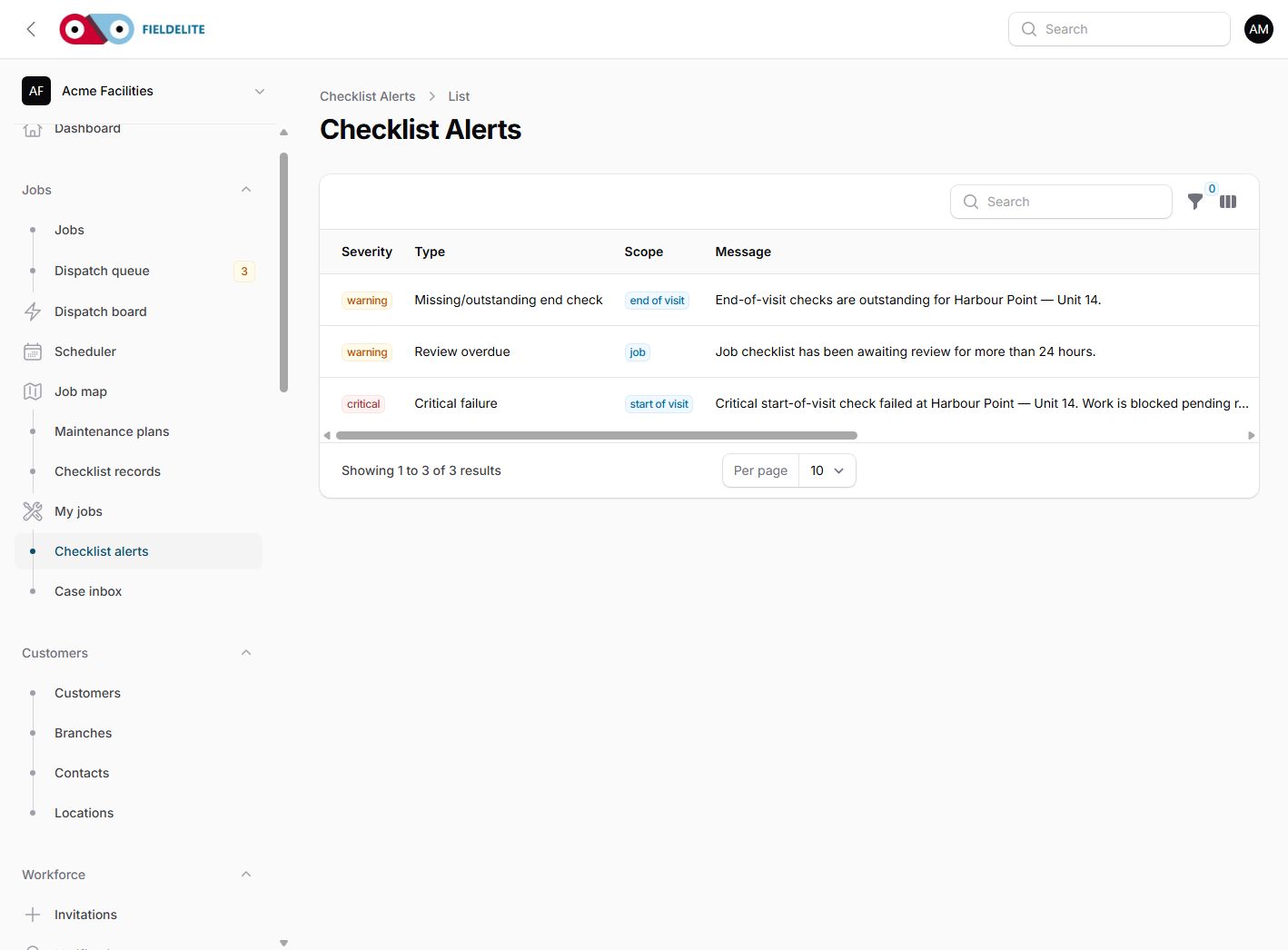
Alerts are generated for:
- missing start-of-shift or start-of-visit checks
- missing end-of-shift or end-of-visit checks
- critical failures
- overdue reviews
- outstanding handover
Each alert can be acknowledged, assigned and resolved with a note. Alerts are deduplicated so a repeated job does not create a new alert every run.
Review a submitted check
- Open Job checklists.
- Filter to submitted or review required.
- Read the answers, readings, evidence and gate reason.
- Approve, or return for correction with a note.
- A returned check keeps the original answers and creates a review event.
Checklist report
Open Reports → Checklist report.
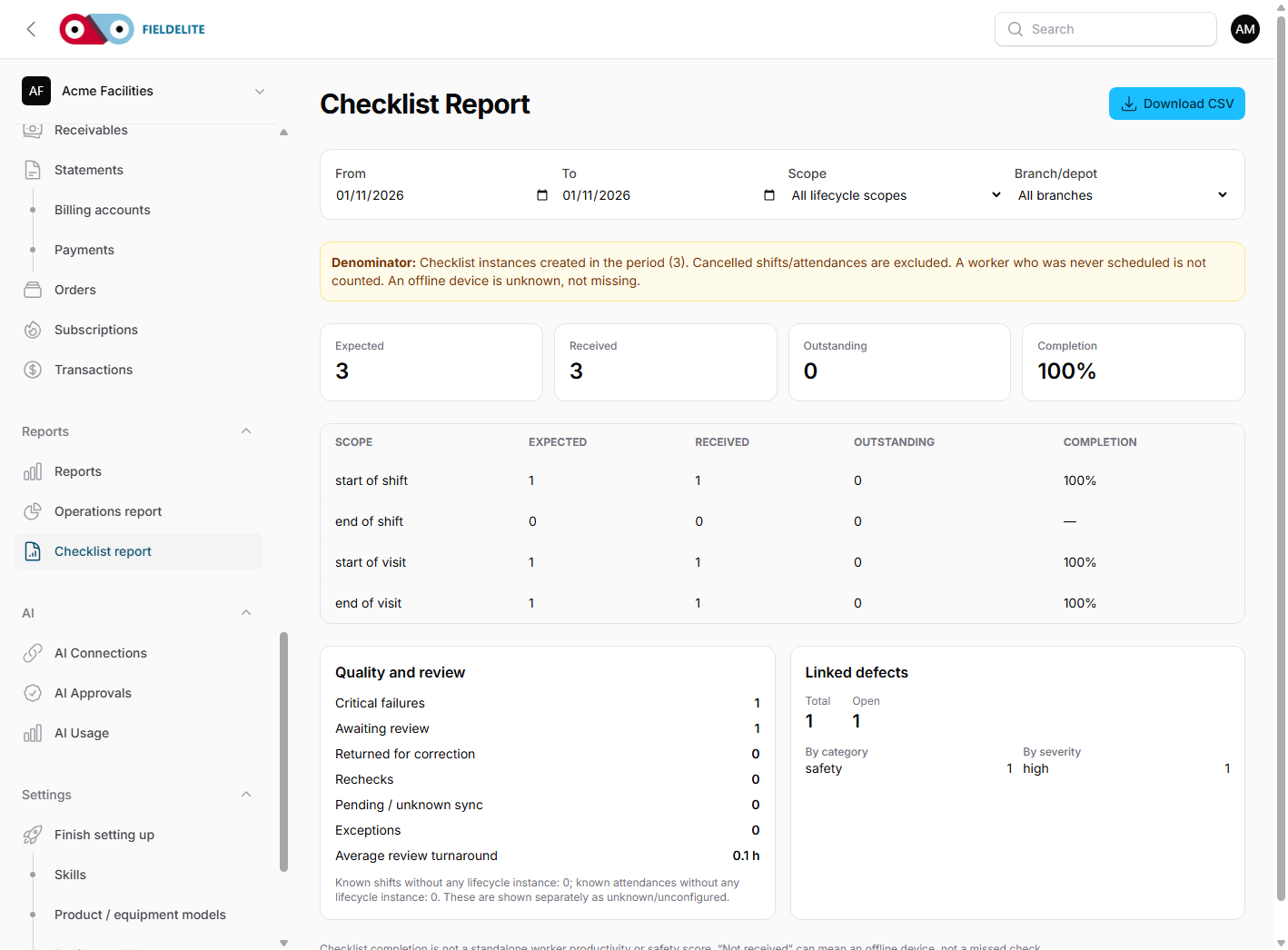
The report shows completion and exceptions by shift and visit, including:
- completion and outstanding counts
- critical failures
- review turnaround
- rechecks and exceptions
- unsynchronised or unknown records
The denominator and exclusions are stated. A device that is offline is shown as not received, not as not completed.
Download the CSV for analysis.
Failed answers and defects
If an item is configured to create a defect, a failed answer creates one linked defect with the checklist, shift or attendance, asset or vehicle, and item reference.
Resolving the defect does not change the original failed answer. The failure remains in the record.
Check your understanding
- What is the difference between a shift and an attendance?
- Which gate stops ordinary progression?
- What does an exception not clear?
- Why is "not received" not the same as "not completed"?
Related: Checklists, forms and evidence · Safety checklists, RAMS and SPA · Incidents, hazards and assistance cases · Field: shift and visit checks
Related articles
Who this is for: everyone in the office workspace. What you will learn: where the help centre lives, how to search it, and how to get from a screen to the right article. Open the h...
Who this is for: office administrators, dispatchers, managers and finance users. What you will learn: how to sign in to the right workspace, find your way around, and set up your p...
Who this is for: office administrators, dispatchers and managers. What you will learn: how FieldElite models a customer, its sites and the people on site — and how to give a custom...
Who this is for: office administrators, dispatchers, managers and supervisors. What you will learn: how to raise a job, assign it, move it through the status workflow, and close it...