Getting started in the office
Who this is for: office administrators, dispatchers, managers and finance users.
What you will learn: how to sign in to the right workspace, find your way around, and set up your profile before you touch live work.
Before you start
- Your workspace address, for example
https://acme.fieldelite.example. - Your email address and password.
- A phone or authenticator app if your workspace requires two-factor authentication.
One workspace per tab. Each customer workspace has its own address. If you work across several companies, open each one in a separate browser tab.
Sign in
- Open your workspace address and add
/login. - Enter your Email Address and Password.
- Select Login.
- If prompted, enter your two-factor code or recovery code.
If your account was created by an invitation, use the link in the invitation email the first time. Do not create a second account.
Find your way around
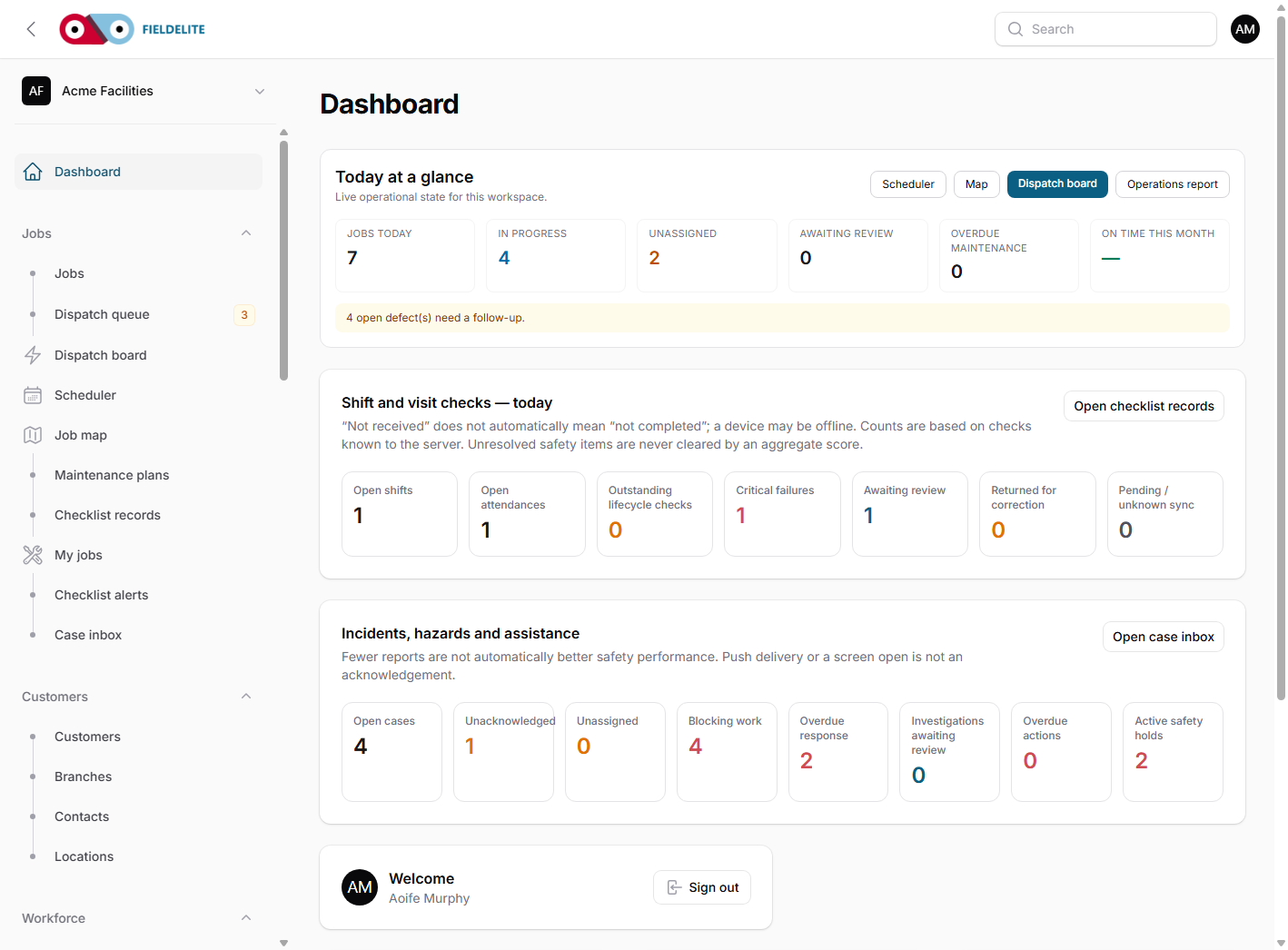
The left navigation is grouped by the work you do:
| Group | What lives there |
|---|---|
| Jobs | Jobs, case inbox, case routing rules, dispatch queue, dispatch board, scheduler, job map, maintenance plans, checklist alerts, job checklists, safety checklists and my jobs |
| Customers | Customers, branches, contacts and locations |
| Workforce | Users, invitations, notifications, crews, skills, worker skills, expense claims, expense approvals and broadcasts |
| Assets & equipment | Assets, products, vehicles, devices and sensors |
| Forms & documents | Forms, form submissions and the document library |
| Accounts | Quotes & invoices, billing review, receivables, statements, billing accounts, payments, orders, subscriptions and transactions |
| Reports | Operations report, checklist report, expense reports and receivables |
| AI | AI settings, connections, approvals and usage |
| Settings | Custom fields, skills, product/equipment models, device models, checklist templates, roles and the activity log |
Use global search at the top for a customer name, job title, invoice number or asset tag. Search is faster than browsing when a customer is on the phone.
Use the sidebar toggle to hide the navigation when you need more room for a table or calendar.
Your first 15 minutes
- Open My profile from the user menu and check your name, email and phone.
- Turn on two-factor authentication if your administrator requires it.
- Open Dashboard and read the Today at a glance tiles.
- Open Jobs, filter to Pending, and sort by scheduled start.
- Open one job and read the customer, site, access instructions and dispatch notes.
- Open Help in the left sidebar, search for a topic and bookmark it. See Using the online help.
Understand your role
| Role | Typical access |
|---|---|
| Admin | Everything, including team, roles, billing settings, bank details, refunds and write-offs |
| Manager | Day-to-day operations and billing, without the most sensitive finance permissions |
| Office / dispatcher | Jobs, customers, scheduling, quotes, invoices and reports |
| Worker | Only My jobs and the field execution screen |
| Customer portal user | Only their own jobs, quotes, invoices and statements |
If a button is missing, it is usually a permission, not a bug. Ask an admin to check your role.
Tips
- Tip: Use the breadcrumb at the top left to step back one level.
- Tip: Tables remember filters while you stay in the section, but a full page reload resets them.
- Tip: Press
Ctrl+K(orCmd+K) to jump to global search. - Warning: Do not share your login. Every change is written to the audit log against your user.
Check your understanding
- Which navigation group holds maintenance occurrences?
- Where do you change your password?
- What should you do if a menu item is missing?
Related: Customers, sites and contacts · Jobs and the job lifecycle · Troubleshooting
Related articles
Who this is for: everyone in the office workspace. What you will learn: where the help centre lives, how to search it, and how to get from a screen to the right article. Open the h...
Who this is for: office administrators, dispatchers and managers. What you will learn: how FieldElite models a customer, its sites and the people on site — and how to give a custom...
Who this is for: office administrators, dispatchers, managers and supervisors. What you will learn: how to raise a job, assign it, move it through the status workflow, and close it...
Who this is for: dispatchers, schedulers and operations managers. What you will learn: how to plan the day, assign the right worker, and keep customers informed. The four planning...