Assets and documents
Who this is for: office administrators, contract managers and compliance leads.
What you will learn: how to register equipment, label it for the field, and control the documents that go with it.
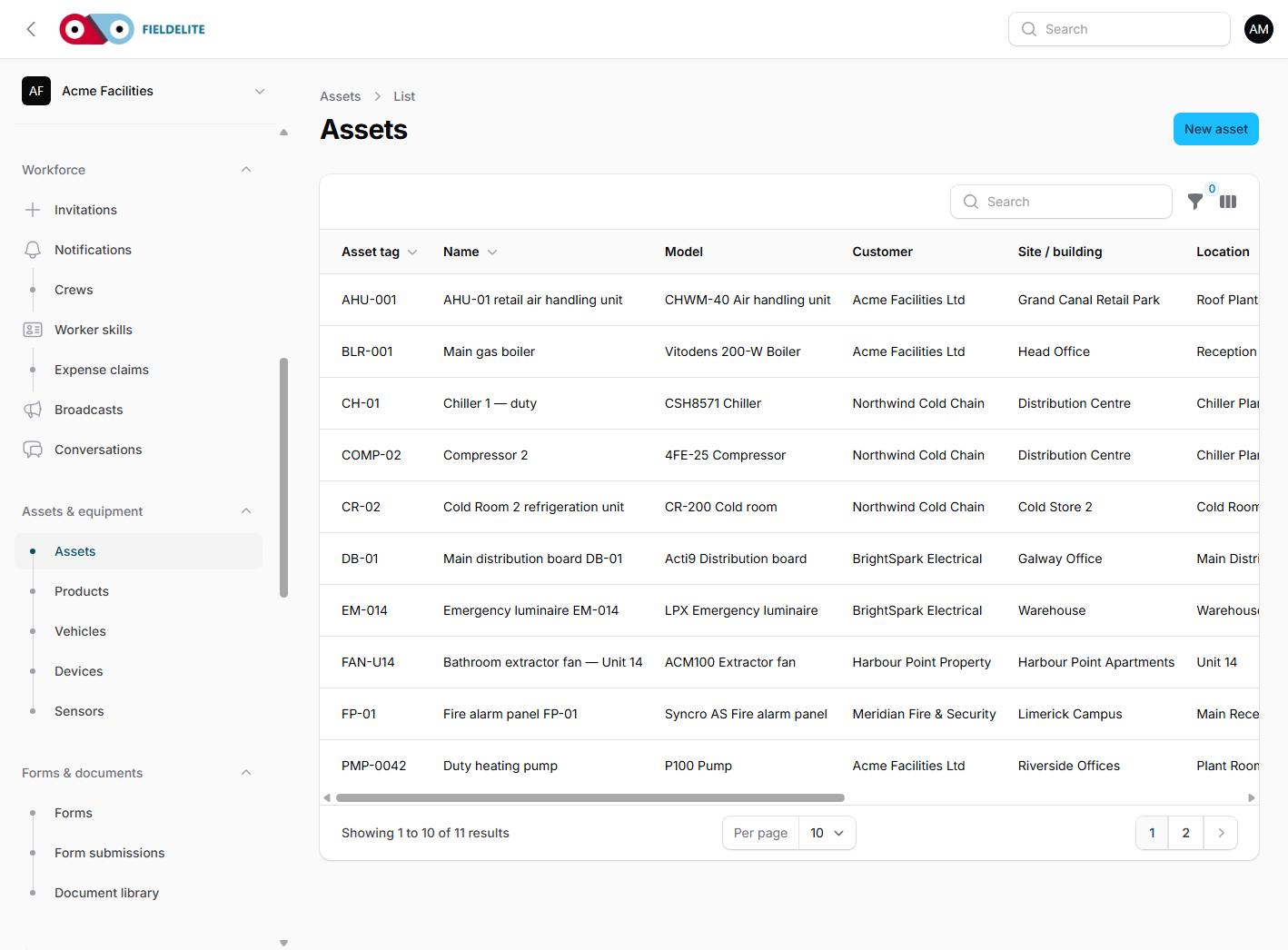
Why assets matter
An asset turns a vague job into a specific one. "Pump PMP-0042, plant room, Riverside Offices" is actionable; "the pump" is not.
Assets carry:
- a unique asset tag
- a serial number
- an equipment model
- a site and location
- a condition and availability status
- identifiers (QR, barcode, serial, internal tag)
- documents, maintenance plans and job history
Add an asset
- Go to Assets → New asset.
- Choose the customer, branch and location.
- Choose or create the Equipment model.
- Enter the asset tag, serial number and name.
- Set the condition (operational, degraded, faulty, out of service, unknown).
- Add the install date and notes.
- Save.
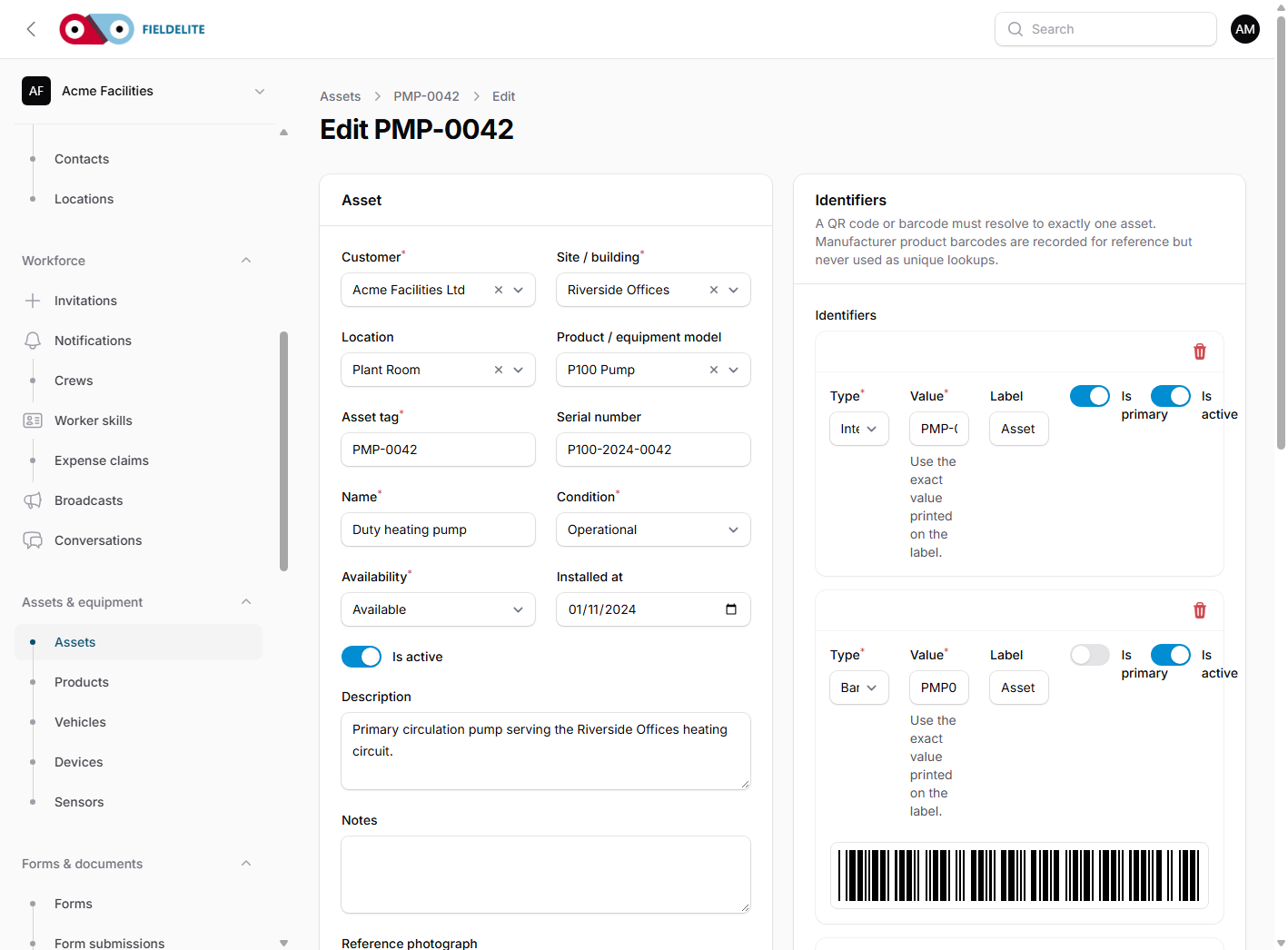
Show or print a QR label
- Open the asset (click the row in Assets).
- The Identifiers section shows each recorded identifier and renders its QR code or barcode.
- Print or copy the code, or use it on the job.
- Fix the label where the field worker will find it - on the plant, not in a folder.
The worker can scan the code to prove they worked on the right asset. The manufacturer's product barcode is deliberately not used as a unique identifier because it identifies a model, not a specific unit.
Locations
Locations are hierarchical: site → building → floor → room. Use them consistently:
Riverside Offices
└── Plant Room (PR-01)
    ├── Duty pump
    └── Boiler
A location is more useful than a long free-text description.
Document library
Open Document library to manage controlled documents:
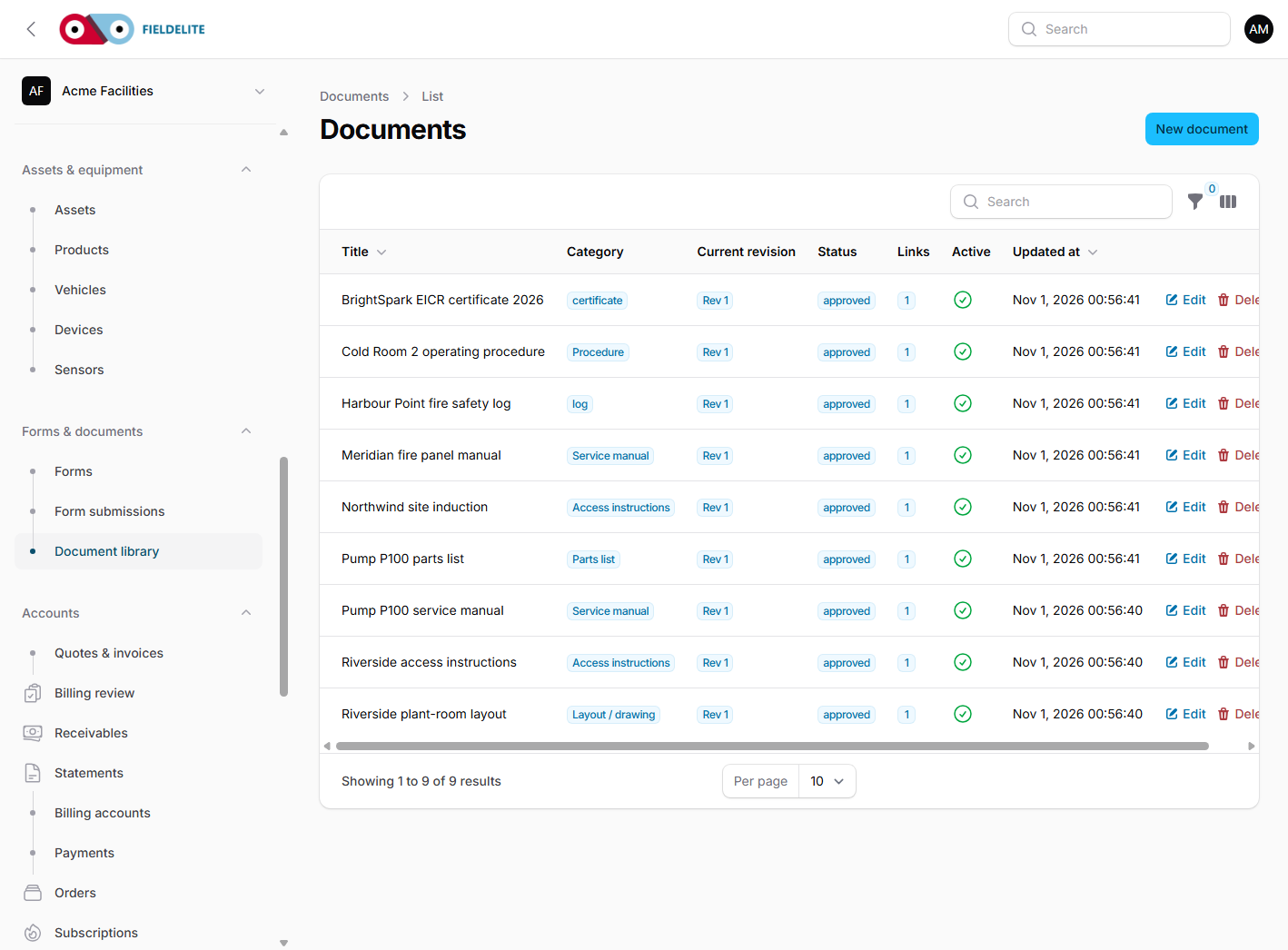
| Field | Meaning |
|---|---|
| Category | access, manual, certificate, layout, procedure, log |
| Revision | each upload is a numbered revision |
| Status | draft, approved, superseded, withdrawn |
| Effective date | when the revision applies |
| Required acknowledgement | the worker must confirm they read it |
| Links | customer, branch, location, asset or model |
Publish a revision
- Open the document.
- Upload a new revision.
- Add a change summary.
- Set the effective date.
- Approve it.
- The previous revision becomes superseded.
Workers see required reading on the job screen and must acknowledge it before submitting.
Warning: Do not overwrite an approved revision. Upload a new revision so the audit trail stays intact.
Link documents to the right scope
- Customer — contract terms, insurance, onboarding pack.
- Branch — access instructions, site induction, fire log.
- Location — plant-room layout, isolation points.
- Asset — manual, parts list, commissioning report.
- Model — generic manual shared by every instance.
Check your understanding
- Why is a manufacturer barcode not a unique asset identifier?
- What happens to the previous revision when a new one is approved?
- Where should a plant-room layout be linked?
Related: Maintenance plans and the dispatch queue · Field: safety, documents and acknowledgements
Related articles
Who this is for: everyone in the office workspace. What you will learn: where the help centre lives, how to search it, and how to get from a screen to the right article. Open the h...
Who this is for: office administrators, dispatchers, managers and finance users. What you will learn: how to sign in to the right workspace, find your way around, and set up your p...
Who this is for: office administrators, dispatchers and managers. What you will learn: how FieldElite models a customer, its sites and the people on site — and how to give a custom...
Who this is for: office administrators, dispatchers, managers and supervisors. What you will learn: how to raise a job, assign it, move it through the status workflow, and close it...