Reporting incidents and asking for help
Who this is for: field workers using the Android app.
What you will learn: how to report an incident, near miss or hazard, request supervisor assistance, and understand what happens when you are offline.
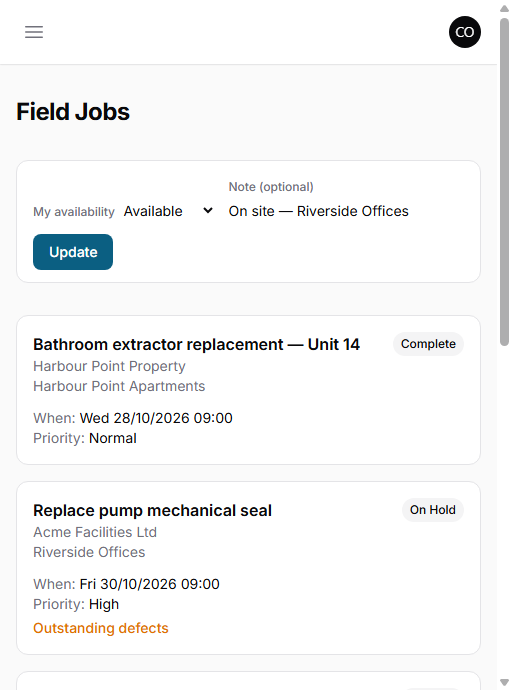
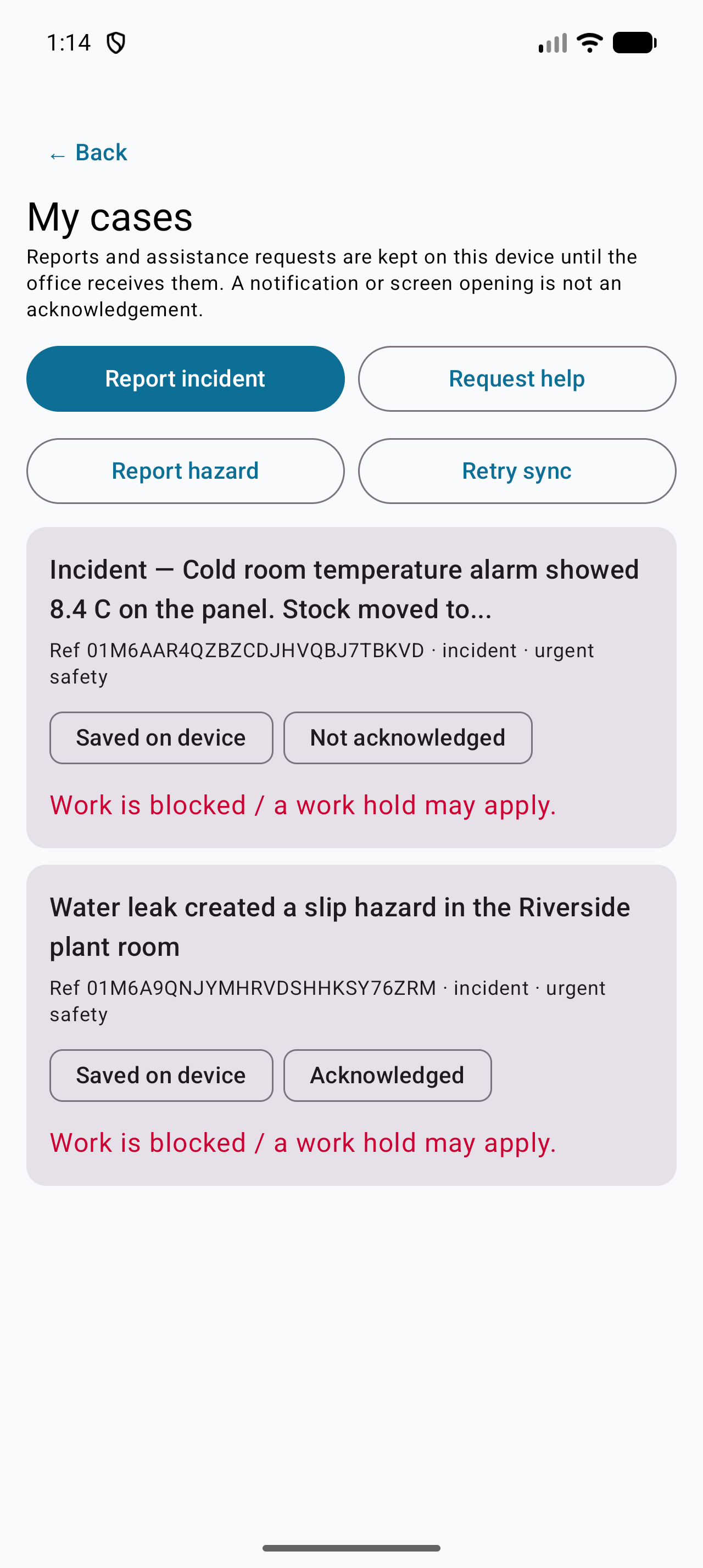
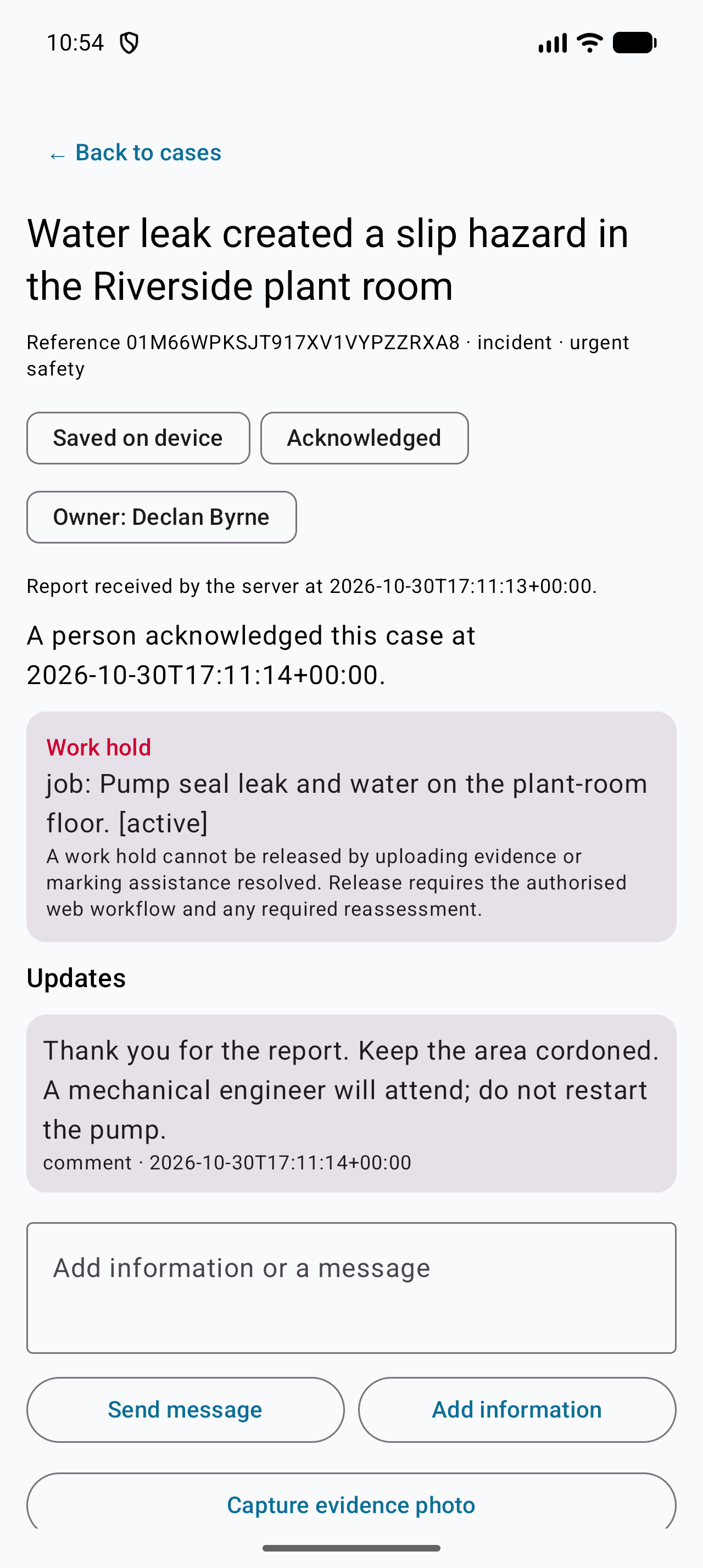
Four report types
| Type | Use it for |
|---|---|
| Incident | Something happened: injury, damage, spill, dangerous occurrence |
| Near miss | Something almost happened |
| Hazard | A condition that could cause harm |
| Supervisor assistance | You need advice, a decision or authorisation |
Use a defect for a fault in equipment. Use a case for the safety event or the request for help. They can be linked.
Report from the app
- Open Cases.
- Tap Report.
- Choose the type.
- Describe what happened or what you need.
- Record where you were and the time.
- Link the job, visit, asset or vehicle if relevant.
- Record whether work stopped and whether anyone was hurt.
- Add photos or files.
- Submit.
The report is saved on the phone first. If you are offline, it waits in the outbox and uploads when you reconnect.
What the office sees
The office sees a new case with:
- your original wording
- the time you recorded and the time the server received it
- the job, asset or visit you linked
- evidence upload state
- whether the report is still on the device
Warning: A report on your phone is not a call for emergency help. If someone is in danger, call the emergency services and your supervisor.
Assistance requests
Use Supervisor assistance when you are blocked and need a decision.
Choose a category:
- technical advice
- safety clarification
- site access
- wrong or missing parts
- equipment or tool problem
- scope or variation approval
- customer issue
- scheduling or resource support
Say whether work can continue and when you need an answer. The office can reply in the case and record the outcome. You may be asked to confirm whether the advice resolved the issue.
Chat with the office
Tap Messages on the jobs screen to see every job, case and office-team conversation in one inbox.
- Open the conversation for the job or case.
- Type a short update and tap Send.
- The office sees it in the same conversation thread.
- Office replies appear in the thread after you tap Refresh.
- A message you send offline shows Queued on this device until the server accepts it.
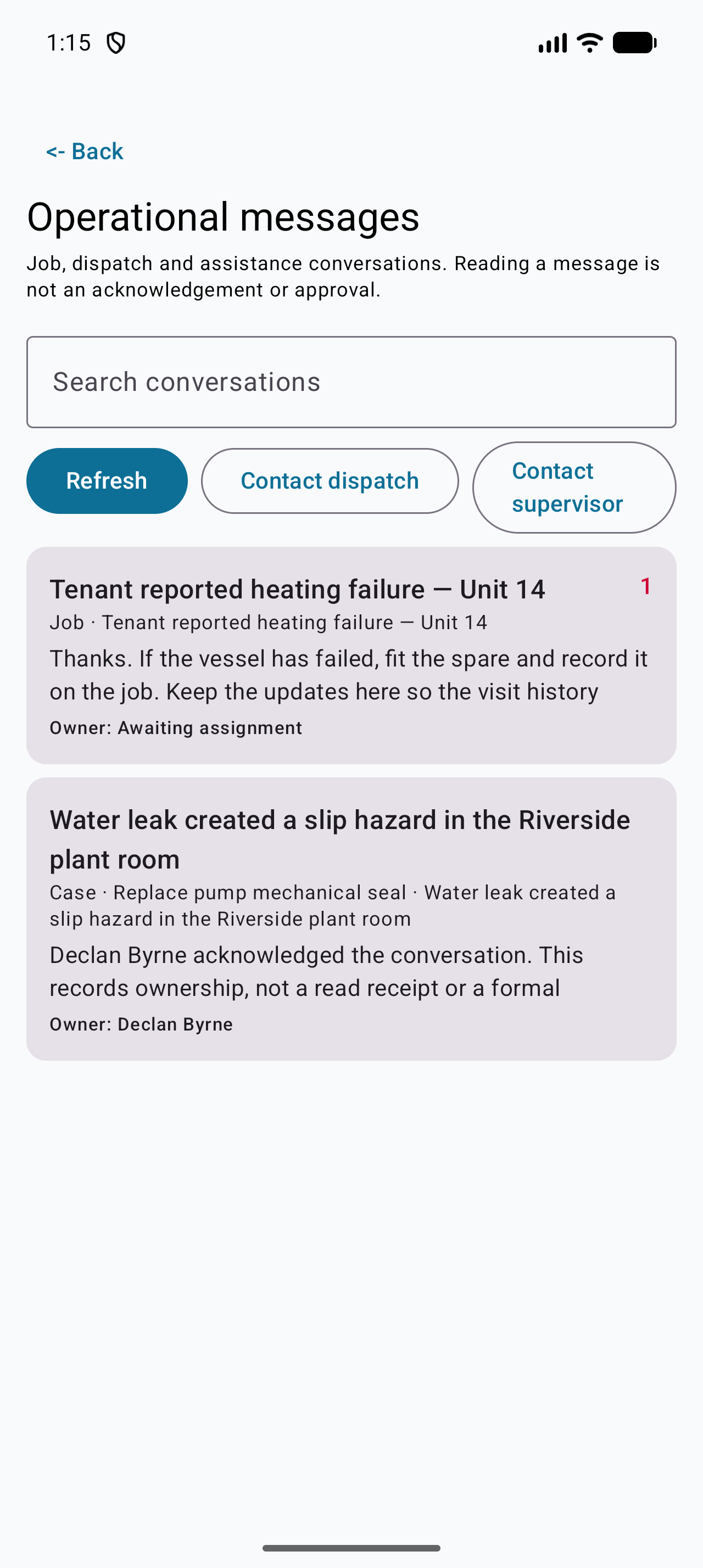
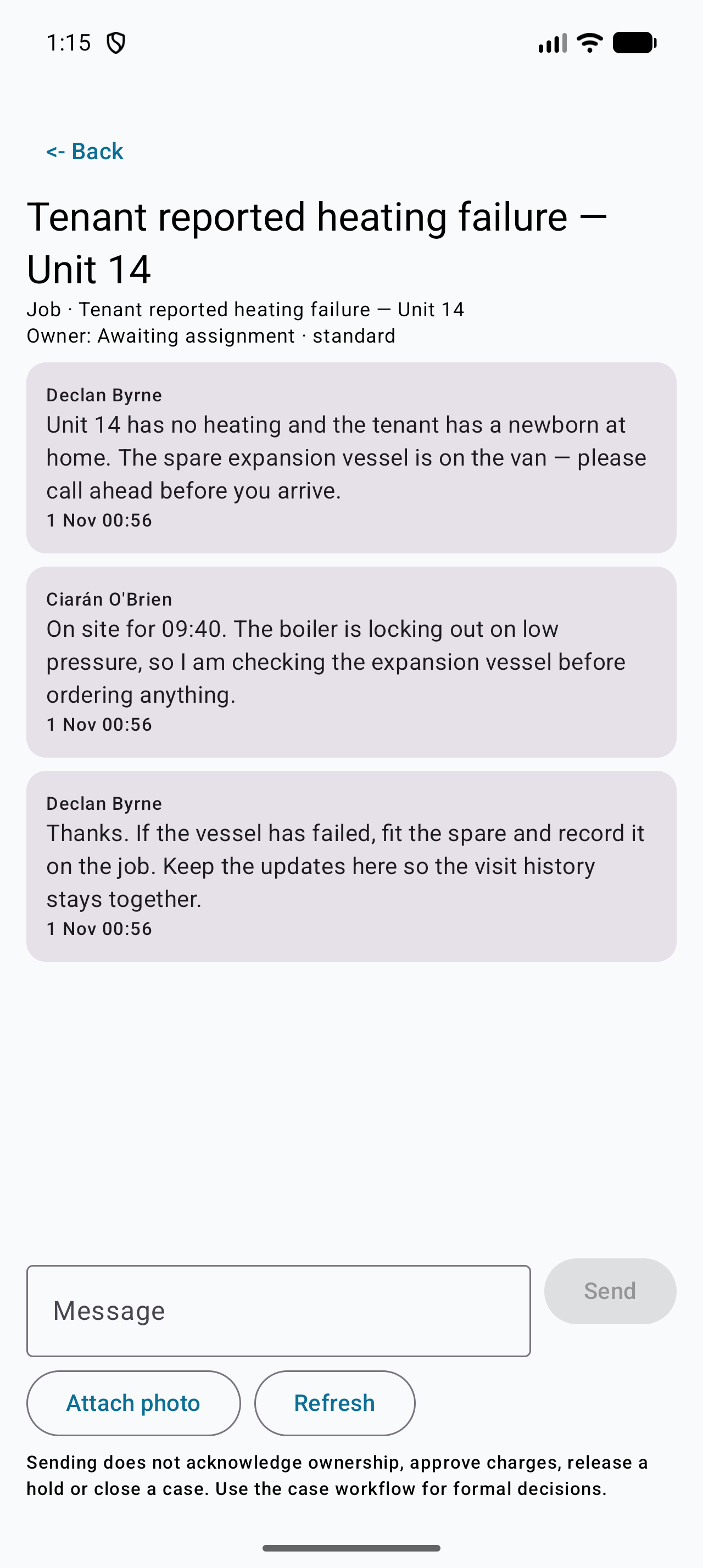
Use Add information on a case for a formal amendment; use the conversation for an update. Do not put restricted medical or witness detail in a message.
Reading a message is not an acknowledgement, and sending one does not approve a charge, release a hold or close a case.
Work holds
A work hold means the affected work must stop.
- The app shows the hold and its scope.
- You cannot release a safety hold from the app.
- Do not restart work because the case was closed; only an authorised release clears the hold.
- If you believe the hold is wrong, call the office.
Messages and evidence
- Worker-visible messages are for you and the office.
- Internal notes are not shown to you.
- Evidence can be queued offline and resumes when you reconnect.
- Do not delete the app while evidence or reports are pending.
After you report
You will see one of these states:
| State | Meaning |
|---|---|
| Draft on device | Not submitted |
| Queued / pending upload | Saved on the phone, not yet received |
| Received by office | The server has it |
| Acknowledged | A person has seen it |
| In progress | Being handled |
| Resolved / closed | Outcome recorded |
Acknowledgement is not the same as help arriving.
Check your understanding
- When do you use a case instead of a defect?
- What does "pending upload" mean?
- Can you release a safety hold from the app?
- What should you do in an emergency?
Related: Offline use and syncing · Shift and visit checks · Office: incidents, hazards and assistance cases
Related articles
Who this is for: field workers using the web workspace, the PWA or the Android app. What you will learn: how to open the help centre and find the answer without leaving the job. Op...
Who this is for: engineers, technicians and anyone completing jobs on site. What you will learn: how to sign in, find your work, and understand what the office expects from each jo...
Who this is for: field workers. What you will learn: the on-site routine that produces a clean, billable, defensible job record. Arrive and start Park safely and follow the site'...
Who this is for: field workers. What you will learn: how to complete a checklist correctly and capture evidence that will stand up to review. How a checklist behaves It is a snap...