Quotes and approvals
Who this is for: customer portal users who approve work.
What you will learn: how to review a quote, accept it, decline it and understand what happens next.
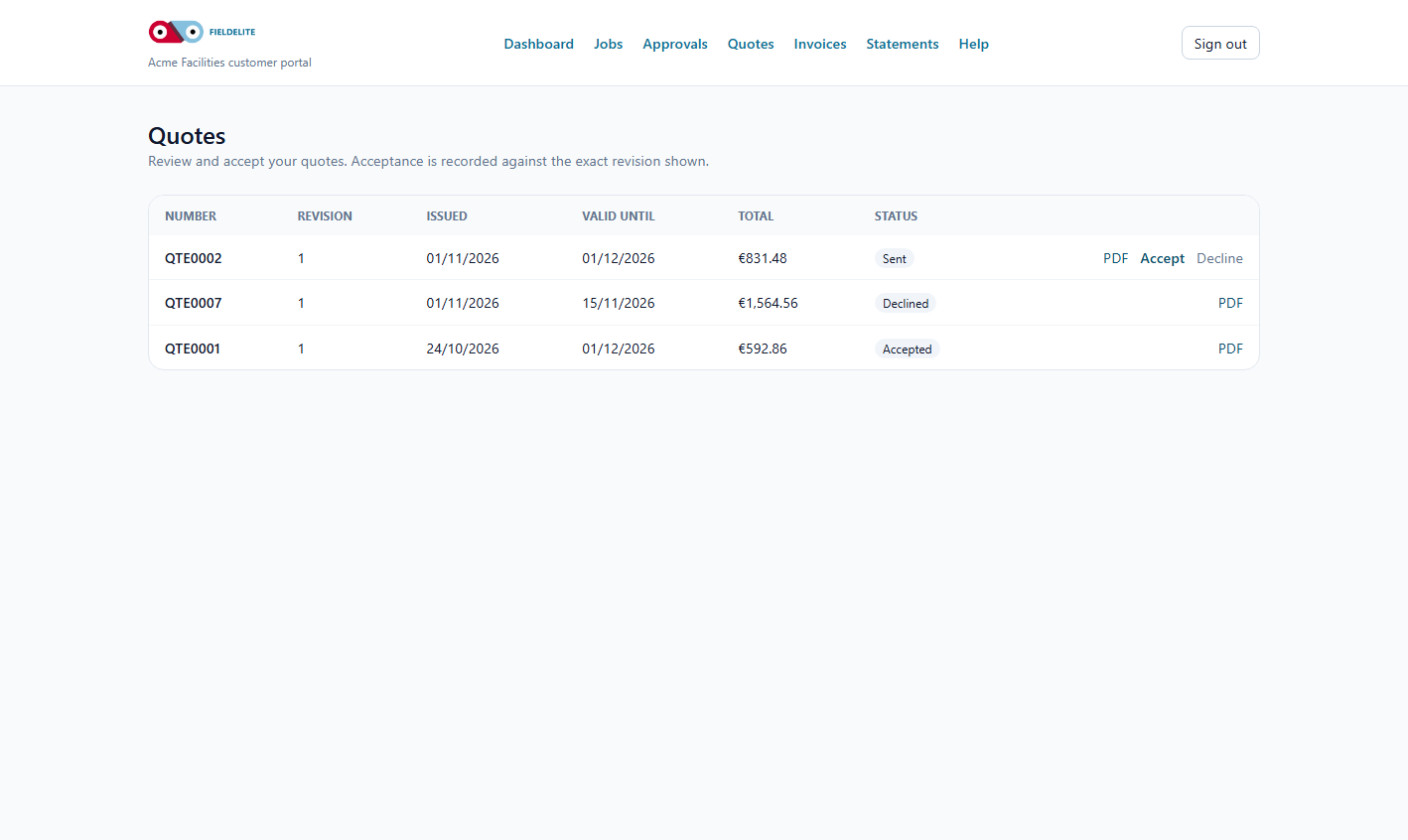
Review a quote
- Select Quotes.
- Open the quote you want to review.
- Check:
- the customer and site
- the description of the work
- quantities and prices
- VAT
- the total
- the validity date
- terms and exclusions
- Download the PDF if you need internal approval.
Accept a quote
- Select Accept.
- Check your name and email.
- Add a Purchase order number if your organisation requires one.
- Confirm.
The acceptance records your name, email, the exact quote revision, the time and the method. Your provider is notified.
Tip: If you need a PO before approval, get the number first. Adding it at acceptance avoids a delay.
Decline a quote
- Select Decline.
- Give a reason.
- Confirm.
The provider sees the reason and can revise the quote.
What happens after acceptance
- The quote is locked to the revision you accepted.
- The provider schedules the work.
- An invoice is raised when the work is complete or according to the payment terms.
- You can still view the accepted quote in the portal.
If the quote has expired
The portal will not accept an expired quote. Ask your provider for a revised quote. Prices and availability may have changed.
If you need a change
Do not accept and then ask for changes. Contact your provider first. A revised quote gives you a clean record of what was agreed.
Check your understanding
- What is recorded when you accept a quote?
- Why add a PO number at acceptance?
- What should you do if a quote has expired?
Related: Invoices and payments · Account and support
Related articles
Who this is for: customer contacts with portal access. What you will learn: how to sign in, reset a password and keep your account secure. Before you start The portal address fro...
Who this is for: customer portal users. What you will learn: what the dashboard shows and where to go next. What you see Tile or section Meaning Outstanding balance Total u...
Who this is for: customer portal users. What you will learn: how to track jobs and download the service report. Find a job Select Jobs. The list is ordered by scheduled date, new...
Who this is for: customer portal users and accounts teams. What you will learn: how to read an invoice, download it, pay it and raise a query. Open an invoice Select Invoices. Op...