Jobs and service reports
Who this is for: customer portal users.
What you will learn: how to track jobs and download the service report.
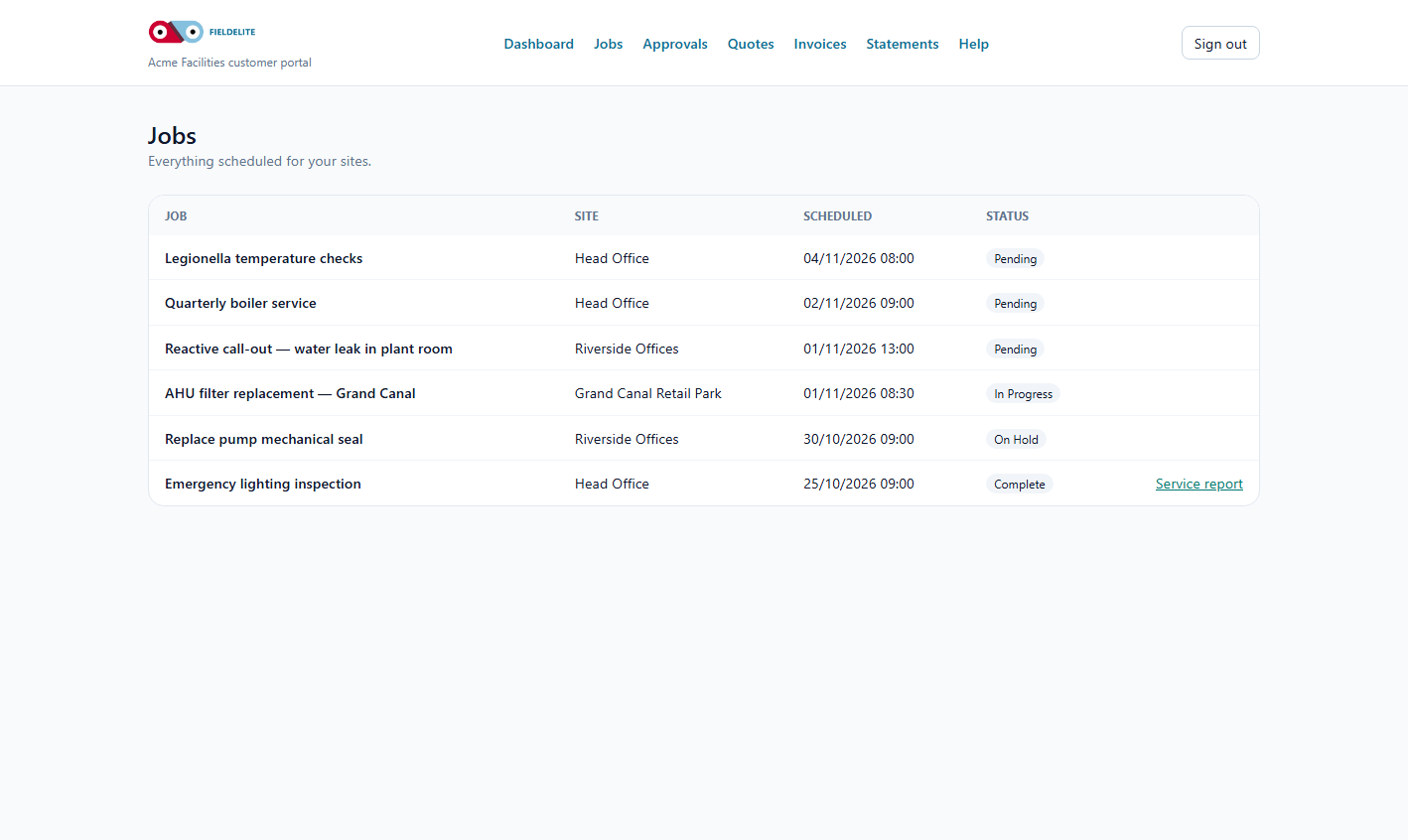
Find a job
- Select Jobs.
- The list is ordered by scheduled date, newest first.
- Each row shows the job title, site, status and date.
- Select a job to see the detail.
What the status means
| Status | Meaning |
|---|---|
| Pending | Scheduled but not started |
| In Progress | A worker is on site or has started |
| On Hold | Waiting for parts, access or approval |
| Complete | Work finished and signed off |
| Cancelled | Work no longer required |
Download the service report
When a job is complete, your provider may publish a service report.
- Open the job.
- Select Service report or Download PDF.
- Save or print the PDF.
The report includes the work carried out, the site, the date and the sign-off. It does not include internal costs.
If a job is missing
The portal only shows jobs linked to your customer account. If a visit happened but does not appear:
- the job may not be closed yet
- the job may be recorded under a different site
- your account may not be linked to that branch
Contact your provider with the date and site.
If the date or time is wrong
Call your provider. The portal shows the scheduled window, but only the office can reschedule the work. Do not rely on the portal as a live arrival tracker unless your provider has sent you a tracking link.
Tips
- Tip: Download the service report as soon as it is available; it is easier than searching later.
- Tip: Use the job title and date when you contact your provider.
- Warning: Do not allow unauthorised staff to use your portal login to view other sites.
Check your understanding
- Which status means the work is finished?
- What does the service report contain?
- What should you do if a visit is missing?
Related: Quotes and approvals · Invoices and payments
Related articles
Who this is for: customer contacts with portal access. What you will learn: how to sign in, reset a password and keep your account secure. Before you start The portal address fro...
Who this is for: customer portal users. What you will learn: what the dashboard shows and where to go next. What you see Tile or section Meaning Outstanding balance Total u...
Who this is for: customer portal users who approve work. What you will learn: how to review a quote, accept it, decline it and understand what happens next. Review a quote Select...
Who this is for: customer portal users and accounts teams. What you will learn: how to read an invoice, download it, pay it and raise a query. Open an invoice Select Invoices. Op...